

Documentation Index
Fetch the complete documentation index at: https://portkey-docs-log-export-guide-1773064217.mintlify.app/llms.txt
Use this file to discover all available pages before exploring further.
Logs export feature is only available on the enterprise plan. For more info reach us at support@portkey.ai
Data Service must be enabled to use the Logs Export feature for Self Hosted Enterprise customers.
Exporting Logs In-App
You can now export logs directly from the Portkey application by following these steps:- Navigate to the Exports section on the main sidebar.
- Click the Request Data button in the top-right corner.
-
Configure your export parameters:
- Time Range: Select the period for which you want to export logs
- Logs Limits: Choose maximum number of logs or set a custom offset
- Requested Fields: Select which data columns to include in your export
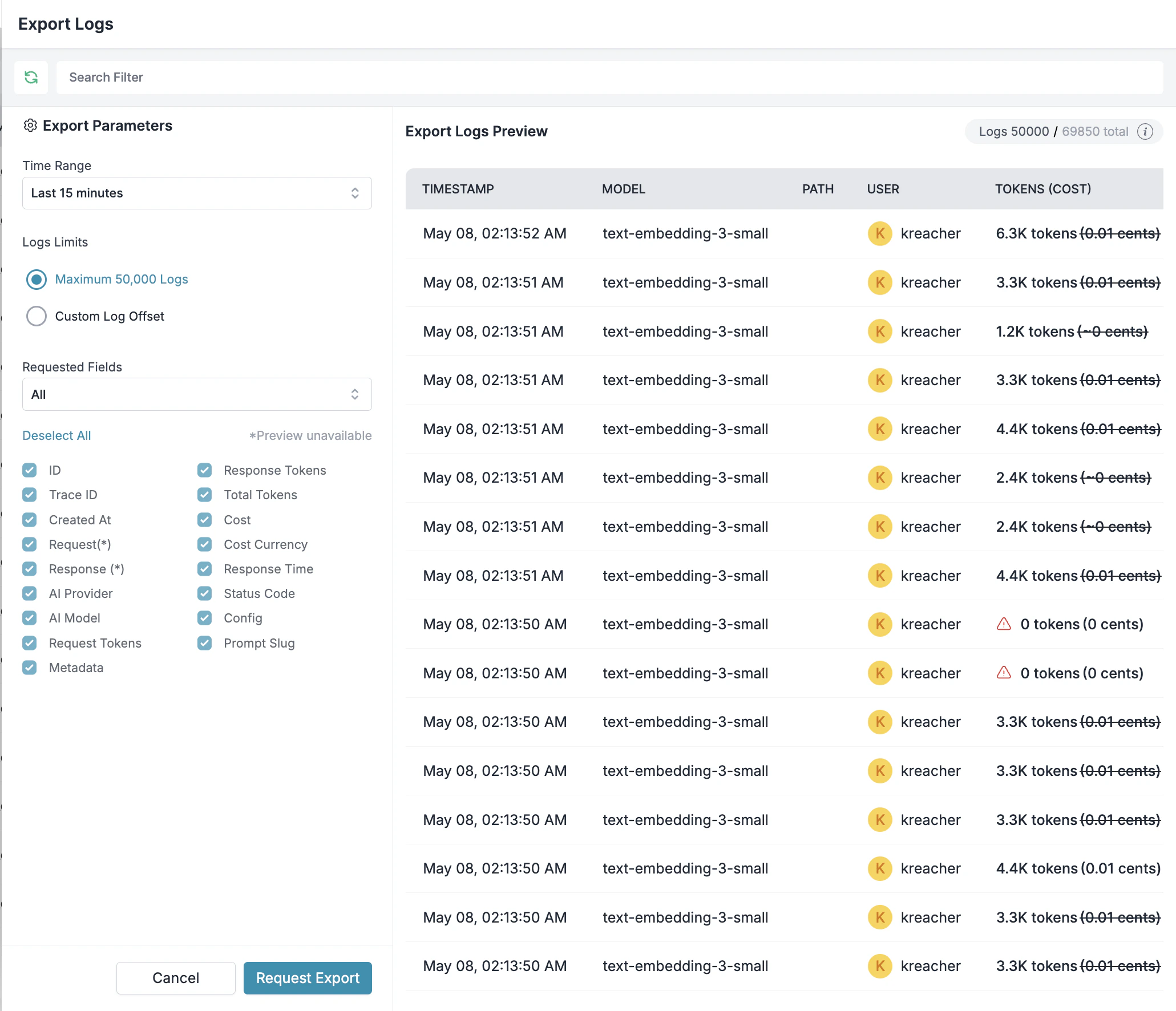
- After setting your parameters, click Request Export.
Available Export Fields
When configuring your log export, you can select from the following fields:| Field Name | Description |
|---|---|
| ID | Unique identifier for the log entry |
| Trace ID | Identifier for tracing related requests |
| Created At | Timestamp of the request |
| Request | Request JSON payload |
| Response | Response JSON payload |
| AI Provider | Name of the AI provider used |
| AI Model | Name of the AI model used |
| Request Tokens | Number of tokens in the request |
| Response Tokens | Number of tokens in the response |
| Total Tokens | Total number of tokens (request + response) |
| Cost | Cost of the request in cents (USD) |
| Cost Currency | Currency of the cost (USD) |
| Response Time | Response time in milliseconds |
| Status Code | HTTP response status code |
| Config | Config ID used for the request |
| Prompt Slug | Prompt ID used for the request |
| Metadata | Custom metadata key-value pairs |
-
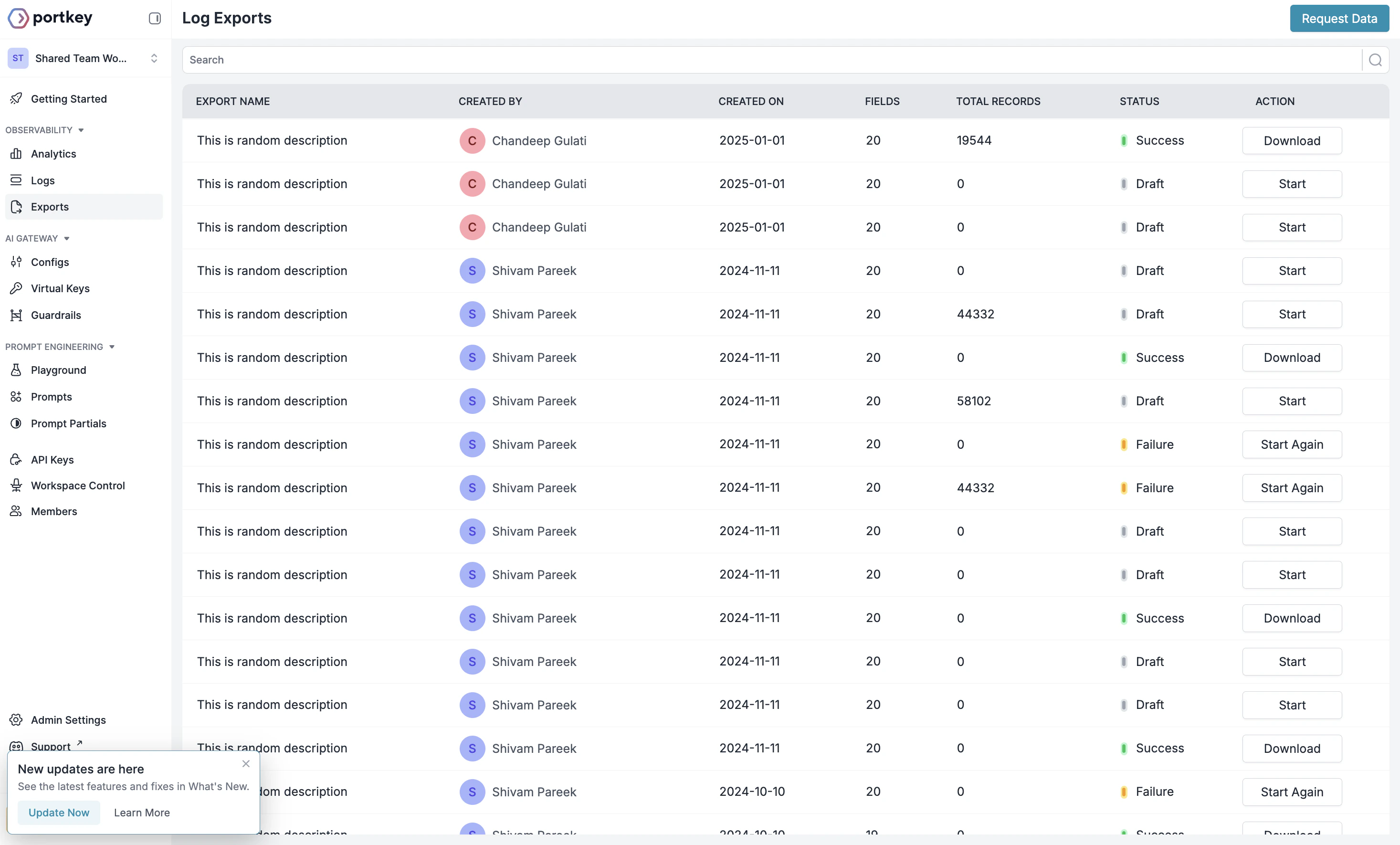
Once your export is processed, you’ll see it in the exports list with a status indicator:
- Draft: Export job created but not yet started
- Success: Export completed successfully
- Failure: Export job failed. Click on the
Start Againbutton to retry the job.
- Clik on the Start button the dashboard to start the logs-export job
-
For completed exports, click the Download button to get your logs data file. You can
Currently we only support exporting 50k logs per job. For more help reach out to the Portkey team at support@portkey.ai
Export File Details
Exported logs are provided in JSONL format (JSON Lines), where each line is a valid JSON object representing a single log entry. This format is ideal for data processing and analysis with tools like Python’s Pandas or other data analysis frameworks. Each export includes:- Up to 50,000 logs per export job (as shown in the preview panel)
- All fields selected during the export configuration
- A timestamp indicating when the export was created
Use Cases for Exported Logs
With your exported logs data, you can:- Generate custom reports for stakeholders
- Feed data into business intelligence tools
- Identify patterns in user behavior and model performance
Exporting logs via API
You can programmatically export logs using the Log Export API. This follows an asynchronous workflow:- Create an export job — Define your export parameters
- Start the export — Begin processing the export
- Poll for status — Check until the job completes
- Download the file — Retrieve the JSONL file via signed URL
Prerequisites
- API key with
logs.exportscope enabled - For completion logs, the
completionscope may also be required
Step 1: Create a log export
Create an export job by specifying the time range and fields you want to export.Step 2: Start the export
Once the export job is created, start processing it.Step 3: Poll for completion
Check the export status until it returnssuccess.
Step 4: Download the export
Once the export is complete, retrieve the signed download URL.Complete example
Here’s a complete script that creates, starts, monitors, and downloads a log export:API reference
For detailed API specifications, see the Log Exports API reference.| Endpoint | Description |
|---|---|
POST /v1/logs/exports | Create a new export job |
POST /v1/logs/exports/{id}/start | Start processing an export |
GET /v1/logs/exports/{id} | Retrieve export status |
GET /v1/logs/exports/{id}/download | Get signed download URL |
GET /v1/logs/{id} | Fetch a single log entry |